
How to Extract Text from JPEG Images?

You took a photo of a receipt. Or maybe you scanned an old document. Now you need the text from it, but it is stuck inside a JPEG file. You cannot just copy and paste it.
Sound familiar? You are not alone. This happens to students, freelancers, business owners, and basically anyone who works with documents.
Good news: there are simple tools that let you extract text from images without retyping a single word.
Let me walk you through exactly how it works.
Table of Contents
Why Would You Need to Extract Text from a JPEG?
What Is OCR and How Does It Work?
Best Ways to Convert JPEG to Text
How to Convert Images to Text in Bulk
Tips to Get Better OCR Results
Final Thoughts
Why Would You Need to Extract Text from a JPEG?

Before we get into the "how," let me give you a few real situations where this comes up.
You photographed a whiteboard during a meeting.
You got a scanned contract as a JPEG and need to edit it.
You have hundreds of product images with text you need in a spreadsheet.
You want to copy a quote from a screenshot.
In all these cases, the text is there. You can see it. But your computer treats it like pixels, not words. That is the problem OCR solves.
What Is OCR and How Does It Work?
OCR stands for Optical Character Recognition. It is the technology behind images to text conversion. Here is what it does in simple terms. You give it an image. It scans the image pixel by pixel. Then it recognizes shapes that look like letters.
Finally, it converts those shapes into actual, editable text.
Modern OCR tools use machine learning. This means they keep getting better over time. They can now handle different fonts, handwriting, and even text in multiple languages.
OCR is not a new concept. But the tools available today are far more accurate than anything we had five years ago. You do not need to be a tech person to use them.
Best Ways to Convert JPEG to Text
Let me cover the most practical options.
Use an Online JPEG to Text Tool

This is the easiest route for most people. You just upload your image and get your text back in seconds. One tool worth trying is JPEG to Text Converter. It is built specifically for this job. You upload your JPEG, it runs OCR on it, and gives you clean, editable text. No software to install. No account needed for basic use.
It also supports exports to Word and Excel, which is handy if you are working with structured data from an image.
Steps:
Go to jpegtotext.com
Upload your JPEG file

Click the “Convert” button.
Copy or download your extracted text

That is it. Seriously.
You can also extract text from an image while keeping its original formatting, including font size and style. Just choose the "Formatted OCR" option.
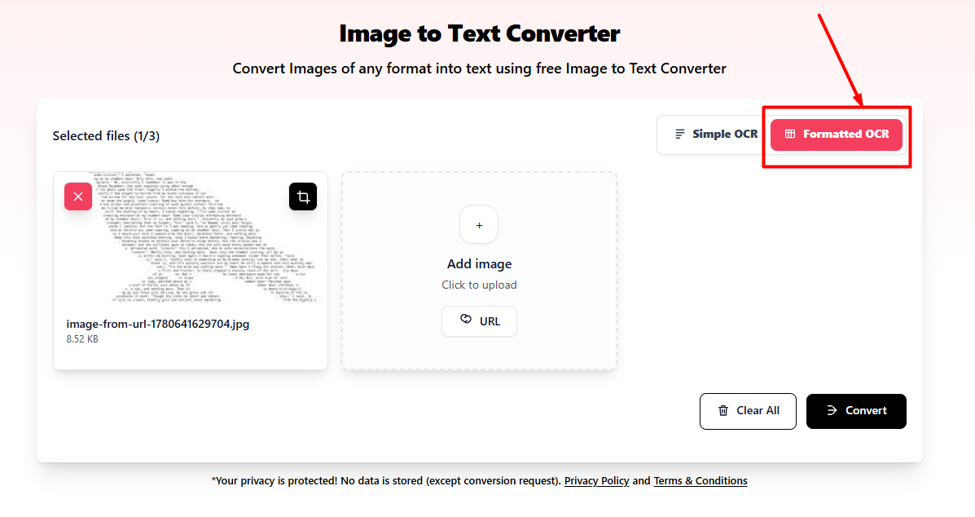
If the image contains a table, such as a receipt or invoice, use the "JPG to Excel" tool. It converts the table into an editable Excel file, making it easy to view and modify the data.

Use Google Docs

This is a free trick most people do not know about.
Upload your JPEG to Google Drive
Right-click the image file
Select "Open with Google Docs"
Google will create a new Doc with the image at the top and the extracted text below it

It works surprisingly well for clean images. The results may need a small cleanup, but it is free and you likely already have a Google account.
Use Microsoft OneNote
If you are a Windows user, OneNote has a built-in OCR feature.
Insert your JPEG into a OneNote page
Right-click the image
Select "Copy Text from Picture"
Paste it anywhere you want
Quick and easy, no internet needed.
Use Adobe Acrobat
Adobe Acrobat has solid OCR features if you already have a subscription. It is best for multi-page documents or scanned PDFs that include JPEGs. Not the most budget-friendly option for simple tasks, but reliable for professional use.
How to Convert Images to Text in Bulk

Now here is where things get interesting for people dealing with large volumes.
Say you have 200 JPEG invoices from last year. Going one by one is painful. That is where bulk OCR comes in.
Many online tools, including jpegtotext.com, let you upload multiple files at once. This saves you serious time. You drop all your files in, let the tool process them, and download the results together.
For developers or power users, there are also command-line OCR tools like Tesseract. It is open source and free. You can write a simple script to process folders full of images automatically.
But if you are not a developer, stick with a web-based tool that supports batch uploads. It handles the hard part for you. According to research on OCR for multiple images, batch processing tools that use machine learning can handle large datasets with high accuracy. They are built to streamline workflows where manually digitizing data would take hours.
The key things to look for in a bulk tool:
Supports multiple file uploads at once
Lets you download results as a zip or spreadsheet
Handles different image qualities without breaking
Tips to Get Better OCR Results {#tips}
OCR is good, but it is not magic. A blurry photo gives blurry results. Here are a few things that will improve accuracy.
Use clear, well-lit images. Shadows and poor lighting confuse OCR engines. Take your photo in good light or near a window. Keep the image straight. Tilted text is harder to read. Most tools can handle slight angles, but the straighter the better.
Use higher resolution images. A 300 DPI scan is far better than a low-res phone photo. If you are scanning documents, use at least 300 DPI. Avoid handwriting if possible. Printed text gives much better results. Handwriting recognition has improved, but it is still less reliable. Crop out unnecessary areas. If your image has a lot of background clutter, crop it down to just the text area before uploading.
Small changes like these can make a big difference in the output quality.
Final Thoughts
Extracting text from JPEG images does not have to be complicated. You have got plenty of options depending on your situation. For a quick one-off job, an online tool like jpegtotext.com is your best friend. For free and occasional use, Google Docs does the job well. If you need to convert images to text in bulk, look for tools with batch upload support. The technology behind all of this, OCR, has come a long way. What used to require expensive software now takes a few seconds in your browser. Give it a try the next time you are staring at a JPEG full of text you need. You will wonder why you ever typed it out manually.


Comments